

Why Learn Full Video Editing for YouTube in 2026?
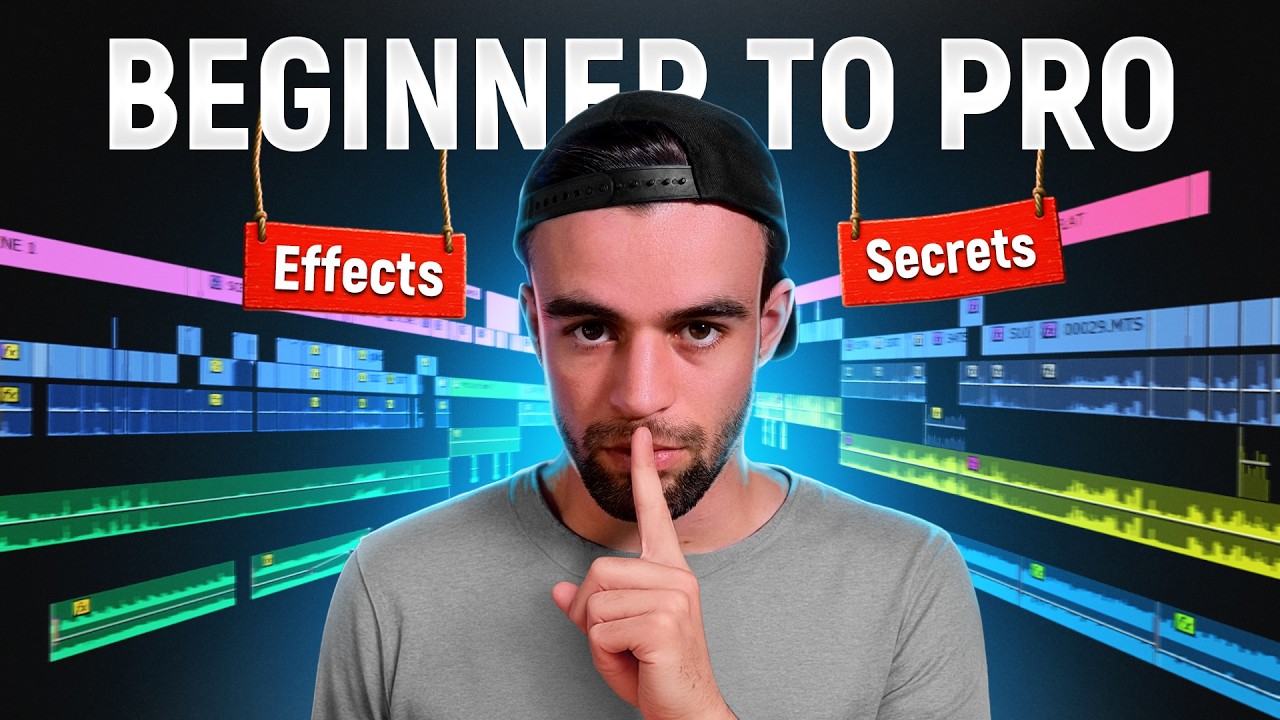
Full Video Editing Course for YouTube (4+ Hours)
Take this course on CourseBond — completely free to start.
YouTube isn’t slowing down. In 2026, viewers expect high-quality, engaging content that feels polished and professional. Whether you’re a vlogger, a gaming channel, or a tutorial creator, editing is what separates a video that gets clicked away from one that gets watched until the end. Full video editing isn’t just about cutting out mistakes—it’s about pacing, storytelling, and keeping your audience hooked.
Learning full video editing for YouTube in 2026 gives you a massive advantage. Algorithms reward retention, and good editing keeps viewers watching. You don’t need a Hollywood budget either. With free tools and structured learning, you can edit videos that look like they cost thousands. Plus, the demand for editors is growing—many creators outsource editing, meaning you can even earn money with these skills. The Full Video Editing Course for YouTube (4+ Hours) on CourseBond is a fantastic starting point because it covers everything from basic cuts to advanced effects without charging a dime.
Another reason to start now: technology keeps evolving. AI tools, color grading, and motion graphics are becoming standard. By learning full video editing, you future-proof your channel. You’ll also save time—editing efficiently means you can upload more consistently, which is key to growing an audience.
Finally, editing is creative and fun. It’s where your personality shines through. Jump cuts, sound effects, transitions—all these elements make your videos uniquely yours. If you’re serious about YouTube, editing is not optional; it’s essential.
Who Should Learn Full Video Editing for YouTube?
This guide is for anyone who wants to create better YouTube videos. Specifically:
- Absolute beginners who have never opened a video editor before. You don’t need any prior experience.
- New YouTubers who are struggling with retention. If your videos feel boring or messy, editing can fix that.
- Content creators who want to level up—add effects, transitions, and professional sound design.
- Freelancers or aspiring editors looking to offer video editing services. YouTube editing is a sought-after skill.
- Students or hobbyists who want a creative outlet without spending money on expensive software.
Even if you’ve done basic trimming in iMovie or CapCut, full video editing takes it further. You’ll learn multi-track editing, audio mixing, keyframing, and more. The Full Video Editing Course for YouTube (4+ Hours) is designed for all these audiences. It’s structured step-by-step, so you never feel lost.
The Best Free Way to Learn Full Video Editing for YouTube
You don’t need to pay for expensive software or courses. The best free way is to combine a powerful free video editor with a structured, beginner-friendly course. Here’s the formula:
Step 1: Choose a free editor. DaVinci Resolve is the industry standard for free. It’s used by professionals and has no watermarks. Alternatively, Shotcut or Olive are simpler options. For mobile, CapCut is excellent.
Step 2: Follow a complete course. Jumping between random YouTube tutorials wastes time. Instead, take the Full Video Editing Course for YouTube (4+ Hours) on CourseBond. It covers the entire editing workflow—importing, cutting, transitions, audio, color correction, effects, and export settings. It’s 4+ hours of focused content, all free.
Step 3: Practice immediately. Don’t just watch. Open your editor and follow along. Edit a short clip, then a longer one. The course includes practical exercises.
Why is this the best approach? Because it’s zero cost, zero risk, and you get a complete roadmap. Many paid courses skip fundamentals, but this one doesn’t. Plus, CourseBond is a marketplace that curates quality content, so you know it’s reliable.
Full Video Editing for YouTube Roadmap: From Beginner to Confident Practitioner
Follow this roadmap to go from zero to editing confidently. It mirrors the structure of the Full Video Editing Course for YouTube (4+ Hours).
Phase 1: Setup and Basics (Week 1)
- Install DaVinci Resolve (free).
- Understand the interface: timeline, media pool, preview window.
- Learn how to import footage and organize clips.
- Master the cut tool—trimming, splitting, and deleting.
- Create a simple 1-minute video with just cuts.
Phase 2: Audio and Timing (Week 2)
- Adjust audio levels (voice, music, sound effects).
- Use keyframes for volume automation.
- Add background music and adjust its volume so it doesn’t overpower speech.
- Learn about pacing—when to cut fast, when to hold a shot.
Phase 3: Transitions and Effects (Week 3)
- Add simple transitions (cross dissolve, dip to black).
- Avoid overused effects—subtle is better.
- Apply basic color correction (exposure, contrast, saturation).
- Use text overlays for titles and captions.
Phase 4: Advanced Techniques (Week 4)
- Learn keyframing for motion graphics (zoom in, pan, animate text).
- Add picture-in-picture (webcam overlay).
- Use green screen (chroma key) if needed.
- Export settings for YouTube (1080p, 60fps, high bitrate).
Phase 5: Polish and Publish (Ongoing)
- Create a consistent intro and outro.
- Add end screens and cards.
- Review your video for pacing issues.
- Get feedback from friends or online communities.
By the end of this roadmap, you’ll be able to edit a full 10-minute YouTube video from start to finish. The course walks you through each phase with real examples.
Common Mistakes Beginners Make
Avoid these pitfalls to accelerate your learning:
- Over-editing: Too many transitions, effects, and jump cuts can confuse viewers. Keep it simple.
- Ignoring audio: Bad audio quality drives viewers away faster than bad video. Always clean up your audio.
- Not using keyboard shortcuts: They save hours. Learn the basics: cut (Ctrl+B), undo (Ctrl+Z), zoom (Alt+scroll).
- Watching tutorials without practicing: You learn by doing, not by watching. Open your editor and replicate what you see.
- Exporting incorrectly: Wrong settings can ruin your video. Use YouTube’s recommended settings (H.264, 1080p, 30 or 60fps).
- Comparing yourself to pros: Their videos took years to master. Focus on progress, not perfection.
The Full Video Editing Course for YouTube (4+ Hours) addresses these mistakes directly. It teaches you to edit efficiently and avoid common errors.
How to Stay Motivated and Finish the Course
Consistency beats intensity. Here’s how to stay on track:
- Set a schedule: Dedicate 30 minutes daily or 2 hours on weekends. Treat it like a class.
- Edit real footage: Use your own videos or free stock footage. Editing something you care about is more engaging.
- Join a community: CourseBond has discussion forums where you can ask questions and share progress.
- Celebrate small wins: Finished a 1-minute edit? Share it. Learned a new effect? Apply it immediately.
- Break the course into chunks: The 4+ hours are divided into sections. Complete one section per session.
- Remember your “why”: Do you want to grow a channel? Make money? Express creativity? Keep that goal visible.
Learning full video editing is a journey. The Full Video Editing Course for YouTube (4+ Hours) is designed to be digestible, so you never feel overwhelmed. Just start, and keep going.
Frequently Asked Questions
Do I need a powerful computer to edit YouTube videos?
Not necessarily. Basic editing (cuts, transitions, text) works on most laptops. For 4K or heavy effects, you’ll need a dedicated graphics card and at least 16GB RAM. DaVinci Resolve is optimized for mid-range systems. If your computer is slow, use proxy files (lower-resolution copies) while editing.
Is the Full Video Editing Course for YouTube (4+ Hours) really free?
Yes, it’s completely free on CourseBond. No hidden fees or subscriptions. You just need to create a free account to access it. The course includes video lessons, downloadable resources, and practical examples.
How long does it take to learn full video editing?
With consistent practice, you can edit a basic video in a week. Mastering advanced techniques like color grading and motion graphics takes 1-2 months. The course is 4+ hours, but you’ll need to practice alongside it to solidify skills.
Can I edit YouTube videos on my phone?
Yes, apps like CapCut and Kinemaster are powerful for mobile editing. However, for full control (multi-track, keyframes, color correction), a desktop editor like DaVinci Resolve is better. The course focuses on desktop editing, which is more versatile.
What if I get stuck during the course?
CourseBond has a community section where you can ask questions. You can also replay any lesson. If a concept is confusing, pause and practice that specific technique until it clicks.
Will this course teach me to edit like a pro YouTuber?
Yes, it covers the same techniques used by popular creators: jump cuts, B-roll, audio ducking, and color grading. With practice, your videos will look professional. The course gives you the foundation; your creativity makes them unique.
Ready to Start Learning?
You have everything you need to begin. No expensive software, no prior experience required—just a willingness to learn and create. Full video editing for YouTube is a skill that opens doors: better videos, more subscribers, even freelance opportunities.
The best time to start was yesterday. The second best time is now. Click the link below to access the complete, free training. It’s 4+ hours of step-by-step instruction that will take you from absolute beginner to confident editor.
Enroll in Full Video Editing Course for YouTube (4+ Hours) (free)
